Tampilkan postingan dengan label Printer. Tampilkan semua postingan

3D TVs Are on Sale!

Watching 3D movies at home is not a fantasy anymore, 3D technology got round to home electronics. But the price of 3D Panasonic, Samsung and Sony TV is huge, though. However, experts say that 3D TV boom has already took its place, therefore very soon anyone will be able to buy 3D TV.


46 Lcd

At the beginning of March the new era came in the U.S. with the first sale of 3D TV by Samsung and Panasonic. March 9, the first 3D TV, a 46-inch Samsung with two pairs of stereo glasses and Blue ray drive were sold for $ 3 thousand. The company admits that the startover of this technology at the mass market is partly owes to the "Avatar" and "Alice in Wonderland" success. Now the price of the 3D Samsung LCD 46 inch screen TV is about 00.


46 Lcd


Panasonic doesn't unveil its price policy. There is only one model in the retail net Best Buy which is on sale that is the 50-inch TV Panasonic VIERA VT20. This is a plasma screen model costs $ 2900 together with a Blue ray player and $ 2500 without it. Each pair of 3D glasses costs $ 150. Panasonic plans to sell three more models 54, 58 and 65-inch screen TVs.

In the summer, or on June 10 to be more precise, Sony Company is going to sell the 3D TV. Sony devices will cost about $ 3200 for 40-inch model and about $ 6400 for 46-inch one. In the future the company plans to issue 52 and 60-inch TVs. Sony says that soon every tenth TV at the market will be of three dimensional images. According to the Sony Company, the price of the cheapest 3D TV in the nearest future will amount to $ 500.

Will the 3D TV "boom" occur? iSuppli analysts forecast that in 2010 4.2 million of the world 3D TV stock will be sold out, totaling $ 7.4 billion, and in 2012 the market will grow up to 27 million devices. But the Gartner analysts have other figures. According to their survey, in 2010, 1.6 million of new generation TVs will be sold and in 2011 this number will make 5.2 million, in 2012 up to 22.2 million and in 2014 - 35.1 million.

Of course, there were skeptics as well: due to lack of content and the need to wear cumbersome glasses with batteries 3D TV has never and will not become widespread. Experts interviewed by the Associated Press, suggest that these disadvantages will be a major deterrent for the development of this new technology. Although manufacturers say otherwise: "content" will go far. For example, Samsung has already signed a contract with DreamWorks Animation, according to the contract conditions DWA will release a special three dimensional versions of their old computer cartoons. "Shrek" will be adapted first. There are some similar plans of other motion pictures studios.

ESPN Company is going to show all the 3Dthe matches of the World Cup, which starts in June. Producers figure on their devices to be popular among console games.

Russian experts were divided in opinions, about popularity and mass of the 3D technology. "Finam" analyst Sergey Filchenkov said: "The niche of this product is extremely narrow. It's kind of a new technological breakout at the market of home video, and according to its price it is definitely on the upper niche. Pursuant to Filchenkov the 3D function in the new TVs won't be in demand for a long time, as the one and the only 3D channel is in Japan only. "For the majority of TV programs 3D format is over killing by its capabilities and will only rise the production price ", - he says.

According to the analyst, the spreading of technology will be held back more because to turn an "ordinary" TV into the three dimensional by buying additional devices is impossible. For Russia, he says, the price of $ 3 thousand, in contrast to the U.S. is too large.


3D TVs Are on Sale!

46 Lcd


Porter Cable Tool

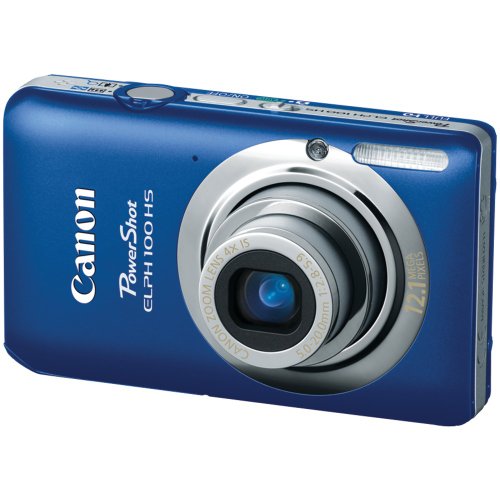
Canon PowerShot ELPH 100 HS 12 MP CMOS Digital Camera with 4X Optical Zoom (Blue)

Special Price!!! Canon PowerShot ELPH 100 HS 12 MP CMOS Digital Camera with 4X Optical Zoom (Blue)

Oct 28, 2011 12:58:10

Canon PowerShot ELPH 100 HS 12 MP CMOS Digital Camera with 4X Optical Zoom (Blue)

Click for larger image and other views


Canon PowerShot ELPH 100 HS 12 MP CMOS Digital Camera with 4X Optical Zoom (Blue)


>> Click here to update Cheapest prices for Canon PowerShot ELPH 100 HS 12 MP CMOS Digital Camera with 4X Optical Zoom (Blue) <<


Canon PowerShot ELPH 100 HS 12 MP CMOS Digital Camera with 4X Optical Zoom (Blue) Feature


  • Canon's HS SYSTEM with a 12.1 MP CMOS and DIGIC 4 Image Processor improves shooting in low-light situations without the need for a flash and
  • Full 1080p HD Video for exceptional quality and keep footage stabilized with Dynamic IS.
  • Get high-speed shooting in a point-and-shoot camera: High-speed Burst Mode captures 8.2fps and
  • Smart AUTO intelligently selects the proper settings for the camera based on 32 predefined shooting situations.
  • 4x Optical Zoom with a Wide-Angle lens (28-112mm) Optical Image Stabilizer and a 3.0-inch PureColor System LCD.
  • Super Slow Motion Movie records video at high speeds to allow slow motion playback.
  • Lowers noise levels at higher ISO settings.
  • 12.1 effective megapixels, 1/2.3-inch CMOS image sensor; 4x wide optical zoom and 4x digital zoom
  • 3.0 in. Pure Color LCD with wide viewing angle; Built-in flash with Red-Eye Correction; Full 1080p HD video with Dynamic IS
  • Optical Image Stabilizer; DIGIC 4 Image Processor;
  • Smart AUTO (32 scenes); New Scene Modes: Toy Camera Effect amd Monochrome
  • USB 2.0 Hi-Speed; SD card slot (card not included)


Canon PowerShot ELPH 100 HS 12 MP CMOS Digital Camera with 4X Optical Zoom (Blue) Overview


Canon's 4925B001 PowerShot ELPH 100 HS Blue 12MP Digital Camera with 4x Wide Zoom and 3.0 In. LCD Display is what you need to add that creative edge. Canon's HS SYSTEM takes the frustration out of low light shooting. The system delivers clear, blur-free shots with the ambiance intact, and frees you from the sometimes unwanted effects of using the flash. Beautiful low light shots are possible at both low and high ISO speeds, and the dynamic range is expanded to retain maximum detail in highlight and shadow areas. It features Full 1080p HD video for exceptional quality and keeps footage stabilized with Dynamic IS.


SAVE NOW on the special offers below!


Available In Stock.

This Canon PowerShot ELPH 100 HS 12 MP CMOS Digital Camera with 4X Optical Zoom (Blue) ships for FREE with Super Saver Shipping.

Price : Click to Check Update Prices Please.


Canon PowerShot ELPH 100 HS 12 MP CMOS Digital Camera with 4X Optical Zoom (Blue)


Limited Offer Today!! Canon PowerShot ELPH 100 HS 12 MP CMOS Digital Camera with 4X Optical Zoom (Blue) Black Friday and Cyber Monday Deals


24 Inch Kitchen Stools

Sony Bravia S-Series KDL-46S5100 46-Inch 1080p LCD HDTV Review

Sony has an unsurpassed credibility when it comes to electronics. You probably aware that some its HDTVs are listed as the best HDTV in the market. Recently, the S-Series were launch and its Sony BRAVIA S-Series KDL-46S5100 46-Inch 1080p LCD HDTV is one of the best entry level LCD TV in the market. The 46-inch TV is great for any living room. Watching movies on the LCD TV is also great due to its immense size. Due to its large size, for those that require a TV in their small bedroom, it is recommended to get smaller size of LCD TV as a 46-inch may be too big for a bed room.


46 Lcd

Featuring a Full HD capability, the KDL-46S5100 can utilize any HDTV signals as well as play it in its highest resolution possible. Third generation game consoles such as the Xbox 360 and the PS3 can be plugged in through the HDMI port available at the LCD TV. The Sony BRAVIA S-Series KDL-46S5100 46-Inch 1080p LCD HDTV offers three HDMI ports which are more than sufficient for most users. Connecting products supporting the BRAVIA Link technology is pain free with this TV as it supports the feature mentioned.


46 Lcd


In addition to the HDMI port, various ports such as PC, S-Video, Component, Composite and many others are available on this unit. This allows appliances that do not support the HDMI feature to utilize some of the many ports available on the TV. A contrast ratio of 30000:1 allows the TV to produce a vibrant level of contrast and deep blacks are often attainable with this HDTV model.

Its glossy screen might produce some glare especially in a room heavily lit with sunlight. However, in a room made specifically for home theatre purposes, this S-Series HDTV proves to be some of the best HDTVs available in the market. There have been a lot of wonderful reviews given by owners of this model. They report of exceptional picture qualities produced by this unit in addition to some of the many features available with the television.

A known problem about the TV is of its HDMI connections. There are several reports of the TV unable to receive HDMI signals from its ports. However, do not fret as a quick call to Sony will solve the problem. Your HDTV might just need a software update, Sony will give you the update in a USB Thumb Drive. The thumb drive can then be plugged in to the USB port available at the back of the unit. Fast and Easy.

Your Sony BRAVIA S-Series KDL-46S5100 HDTV probably is going to be the center of attention when people visit your house, just wait their reaction when you turn it on. With Energy Star 3.0 technology, this LCD TV unit consumes less energy compare to any other competing products in the same category. At a price tag of less than 00, it is a great yet simple television which is great for those that do not require any fancy features on their televisions.


Sony Bravia S-Series KDL-46S5100 46-Inch 1080p LCD HDTV Review

46 Lcd


Visual Arts Books Kolcraft Contours Option Tandem Stroller 10 Touchscreen Monitor

Cara Reset Canon MP258 Error 5B00 atau P07

Postingan kali ini membahas tentang Cara Resetter Canon MP258 error 5B00 atau P07. Karena banyak yg mencari software resetter MP258 error 5B00 atau P07, maka mari langsung menuju ke TKP......

Indikasi awal :
Ketika printer MP258 dinyalakan akan menunjukkan error P07 di LCD panelnya dan dilayar monitor akan muncul error 5B00.

Cara Resetter Canon MP258
error 5B00 atau P07 :
 

1. Printer MP258 yang error 5B00 atau P07 dalam keadaan mati dan kabel listrik terpasang.
2. Tekan Tombol STOP/RESET dan tahan, kemudian tekan tombol POWER dan tahan.
3. Tombol POWER masih ditekan, lepas tombol STOP/RESET, kemudian tekan tombol STOP/RESET 2 x dalam keadaan tombol power masih ditekan.
4. Lepas kedua tombol secara bersamaan.
5. Printer
MP258 yang error 5B00 atau P07 akan berproses beberapa saat (agak lama), kemudian LCD Panel akan menunjukkan angka NOL (0)
6. Komputer akan mendeteksi DEVICE BARU, Abaikan saja .....
7. Keadaan ini menunjukkan printer MP258 dalam keadaan SERVICE MODE dan siap direset.

DOWNLOAD PROGRAM RESETTER MP258
error 5B00 atau P07  di SINI. (TANPA PASSWORD)

1. Exctract File Resetter MP258 untuk
error 5B00 atau P07
2. Siapkan 2 kertas di printer (ini untuk print pada waktu proses reset)
3. Jalankan program Resetter MP258 untuk
error 5B00 atau P07


4. Klik "MAIN", maka printer akan berproses, kemudian MP258 akan print satu halaman dengan tulisan " D=000.0 "


5. Klik " EEPROM Clear ".
6. Kemudian klik " EEPROM ", dan printer akan print hasil Resetter MP258. Salah satu barisnya tulisannya sbb:
"TPAGE(TTL=00000 COPY=00000)"


7. Matikan Printer dengan menekan tombol POWER.
8. Dan Printer
MP258 yang error 5B00 atau P07 sudah siap digunakan kembali . Selesai...
Sumber: http://ekohasan.blogspot.com/2011/01/cara-reset-canon-mp258-error-5b00-atau.html

Cara Service Canon iP1880, iP1980 Blink 4x Orange 1x Hijau

Berikut tentang printer Canon iP1880 dan iP1980 yang blink 4x orange 1x hijau. Blink ini menyebabkan printer iP1980 dan iP1880 tidak bisa digunakan untuk print. Mau tahu cara servicenya?

Indikasi awal Canon iP1880 dan iP1980 blink 4x orange 1x hijau :

Ketika canon iP1880 atau iP1980 dihidupkan, printer akan langsung menampilkan pesan error lewat proses blink pada led printer. iP1980 atau iP1880 ini akan langsung mengalami blink 4x orange 1x hijau.

Penyebab Canon iP1880 dan iP1980 blink 4x orange 1x hijau :
Penyebabnya adalah iP1880 atau iP1980 tersebut membutuhkan reset atau sudah full menurut hitungan Canon.


Cara Service Canon iP1880, iP1980 Blink 4x Orange 1x Hijau :
1. Hidupkan Canon iP1880 atau iP1980 yang blink 4x orange 1x hijau.
2. Tekan dan tahan tombol RESUME sekitar 10-30 detik.
3. Kemudian akan terdengar bunyi printer mulai melakukan inisialisasi / persiapan.
4. Dan Canon iP1880 atau 1980 yang blink 4x orange 1x hijau seharusnya sudah normal kembali dengan led hijau menyala.
5. Selesai.

Oya, cara service canon blink 4x orange 1x hijau ini tidak hanya untuk iP1880 dan iP1980 saja, tapi bisa juga untuk iP1200, iP1300, iP1600, iP1700 yang mengalami blink 4x orange 1x hijau juga.

Selamat mencoba!

Sumber: http://ekohasan.blogspot.com

Canon PIXMA IP3600 / IP4600 Printer & PGI-220 / CLI-221 Cartridges

The Canon PIXMA IP4600 printer costs less than 122 USD, which can seem a little strange considering this is a high-end printer. This is just like any of the multifunctional printers except that it lacks a scanning function. You can expect to see all of the standard functions as seen in conventional Canon printers.

Exterior design

Just like all Canon printers, the Canon PIXMA IP4600 printer has a lovely piano black finish with a highly glossy surface. While this certainly lends the exterior a classy appeal, it is not practical when you have fingerprints on the surface. Compared to the earlier versions of Canon printers the 4600 model is smaller. This also entails that the cassette for the paper sticks out from the front portion of the printer. When the front covering is down, the output portion of the tray obscures this. However, the appearance is not very sleek when the printer is closed. The alternative paper source is via the rear tray when the top cover is folded. With two kinds of control buttons, namely for paper feeding and resuming as well as power and one USB socket located at the rear, this is a compact design. There is also a PictBridge socket that facilitates direct connection to your camera. The Canon PIXMA IP4600 printer uses the Canon CLI-221 cartridges. These have two blacks, where one is strongly pigmented and the other is a dye based one.

Canon PIXMA IP 3600 printer

The Canon PIXMA IP 3600 printer is a color inkjet printer available within the 54 and 90 USD price range. This is a photo printer that can print upto legal paper sizes of 8.5 x 11 inches. There is no wireless connectivity provided and if you hate using cables then this printer can be a bit of a disappointment. One of the advantages of this printer is that you can easily print from the tray paper without having to lift the top portion of the hatch. If you are looking for regular text prints, these Canon printers do a great job. You can also get superior photo print quality with the Canon PIXMA IP 3600 printer. The speed of printing is not all that great and so it is best suited for home usage and non-commercial printing purposes. For photos of 8x10 sizes, you will get plenty of mileage before having to replace the Canon PGI-220 cartridges. Thus, another advantage is that the compatible Canon PGI-220 cartridges provide a good deal of ink shelf life.

Cartridges used

Both the Canon PIXMA IP 3600 printer and the Canon PIXMA IP4600 printer use theCanon PGI-220 cartridges and the Canon CLI-221 cartridges interchangeably. These cartridges are compatible with the Canon printers and you might notice that the newer versions of these cartridges have shrunk in size, almost by half. With new chips in these cartridges, this can be an issue for some consumers. One drawback is that you may find yourself checking in on the ink inside the cartridges occasionally. The Canon PGI-220 cartridges as well as the Canon CLI-221 cartridges do not come along with reset chips. As a bid to prevent providers of third-party cartridges, there is a system of encryption with 128 bits on the monitor chip. However, you can still get compatible cartridges that are as good if not better than the original cartridges and cheaper too.

Canon PGI7 Cartridges & PIXMA MX7600 Printer

The Canon printers always deliver when it comes to quality prints, especially when you are talking about the Canon PIXMA MX 7600 printer. This is a multifunctional printer fully equipped with copier, fax as well as scanning and printing mechanisms. All of these features are built in on an intuitive basis, resulting in superior print output.

Features provided

The Canon PIXMA MX 7600 printer is a class apart. With high quality photo print finishing, which is unparalleled in the laser printing segment, a cool price of just 400 USD and a brand new system of patenting such as autoduplexer and printing head, these Canon printers are simply ahead of their league. The print speeds are superb and in general. This printer is an excellent option when it comes to the niche of high-end multifunctional printers that are capable of photo printing too.

Trendy design

What we liked about these Canon printers was its fashionable design and sleek appearance. The design elements are strikingly similar to the MX700 printer model and the exterior body is made using alloy grays, glossy finish and black matte effects. These features work to make the PIXMA MX 7600 printer a trendy design and aesthetically appealing. One drawback about this printer, however, is the large space it needs. With dimensions of width 19.7 inches, height of 10.1 inches and depth of 21 inches, this printer sure occupies plenty of space! Thus, if you are looking at a printer for your personal usage, this is certainly not the one for you.

One aspect we noticed was that the PIXMA MX 7600 printer is much heavier when compared to its predecessor the MX700, weighing in at around 36.6 pounds. The rear end of the printer contains automatic feeder mechanisms. The tray can hold at a time around 35 pages of either legal or plain paper. The feeder has the ability to fold downwards and thus can be out of your way when you do not use it. In spite of the large dimensions of this printer, it tends to save quite a bit of space. An interesting feature is the foldout plastic coverings on the slots for the media card. These coverings protect the area from grime and dust. The presence of an USB port facilitates connection between the PIXMA MX 7600 printer and the camera. The input tray at the front can hold as many as 150 paper sheets at a time.

Features Each of the individual functions like scanning, copying, fax etc. work perfectly fine and are mutually exclusive of one another, which is another winning aspect of the PIXMA MX 7600 printer. The copier provides features like image repeat, borderless copy, two parties, disappear, recovery as well as compared backup options. Within intervals of 400% you can enhance control of around 25%. The presence of a limited amount of optical character cognition can be obtained through the Navigator EX software. File formats like PDF, JPEG as well as TIFF can be saved with the PIXMA MX 7600 printer. One drawback is that this printer cannot scan directly into memory card or USB card.

Cartridges used

The PIXMA MX 7600 printer uses Canon PGI7 cartridges. These cartridges come at a price of around 10 dollars each and provide exceptional print quality, very good durable finish of prints as well as an ink tank of large capacities that produces superior textual quality. The system of individual tanks helps raise efficiency levels.

Diagnosing and Solving Common Printer Problems

Any business owner or manager knows how important printers are to success. When the printers are down productivity suffers, and even the most robust business can grind to a halt. While many large companies can afford to hire professionals to troubleshoot and maintain the printers in the office, many smaller business owners find themselves wearing the hat of the printer repairman. Knowing how to diagnose and solve common printer problems can save those business owners lots of time and money, while at the same time keeping the business productive and profitable.While there are many different kinds of printers, made by a host of printer manufacturers and wearing a number of name and model badges, most printer problems break down into a short list of categories. Understanding what these breakdowns mean, and learning to diagnose the parts most likely to cause those problems, is a big part of successful printer troubleshooting.

Problem 1 Paper Jams
Paper jams are perhaps the most common of all printer complaints, and they can also be one of the most difficult to diagnose. When a printer begins suffering from persistent paper jams, one of the most important steps is to look for a trouble code on the printer. If such a code is present, refer to the manual that shipped with the printer, or the manufacturers website, for information on how to clear the jam and prevent it from recurring.Paper jams in laser printers are often the result of worn out rollers in the paper trays, so it is important to check those rollers when those jams occur on a regular basis. Most modern printers make it fairly easy for users to change the rollers, and it is a good idea for printer owners to keep a number of extra rollers on hand. When changing worn rollers, be sure to refer to the printers user manual, or instructions on the manufacturers website.

Problem 2 Ink Rubbing Off
Sometimes printer users will discover to their dismay that the ink rubs off the page easily, and this problem can easily result in a stack of unusable paper and hours of wasted time. When the ink rubs off the pages easily the most likely culprit is a defective or worn out fuser. Again, most modern laser printers make it fairly easy for printer owners to swap out a fuser cartridge, but it is still important to carefully follow the directions that came with the replacement cartridge. As with rollers, keeping an extra fuser cartridge on hand for each printer model can save a great deal of time and hassle.

Problem 3 Ink Spots and Inferior Printouts
Spots or other imperfections on the printouts can also be the result of a worn out fuser cartridge, so it is important to check the fuser when this problem occurs. If changing the fuser does not solve the problem it may be that the printer simply needs a good cleaning. Ink from the toner cartridge can often leak into the interior of the printer, causing spotting on the pages. Cleaning the printer with a specially designed cleaning cloth can often put the problem to rest.If the problem continues it may be time to change the toner cartridge. As toner cartridges age they can begin to leak and cause other problems. If spotting is seen on the pages it is important to look carefully underneath the toner cartridge for loose ink and to remove any ink that is found. If ink is continually found inside the printer the toner cartridge is probably leaking and should be replaced at once.

Problem 4 Light Printouts
This is perhaps the easiest to solve of all printer problems, and one of the most common. If the printouts begin to appear light, the most likely cause is a worn out toner cartridge and replacing the toner cartridge should resolve the issue. If the toners seem to wear out too quickly, it may be a good idea to look into changing brands or suppliers. Each toner cartridge should come with an estimated life, and it is important to monitor actual usage to ensure quality service when buying printer consumables.

This article was written by an inkjet printer specialist. Who inkjet supplies from http://www.easyinkz.co.uk who are great resellers of quality discounted Printer cartridges

Optical printer

From Wikipedia, the free encyclopedia

An optical printer is a device consisting of one or more film projectors mechanically linked to a movie camera. It allows filmmakers to re-photograph one or more strips of film. The optical printer is used for making special effects for motion pictures, or for copying and restoring old film material.
Common optical effects include fade outs and fade ins, dissolves, slow motion, fast motion, and matte work. More complicated work can involve dozens of elements, all combined into a single scene.

Hystory

The first, simple optical printers were constructed early in the 1920s. Linwood G. Dunn expanded the concept in the 1930s, and the development continued well into the 1980s, when the printers were controlled with minicomputers. Prime examples of optical printing work include the matte work in 2001: A Space Odyssey and Star Wars.
In the late 1980s, digital compositing began to supplant optical effects. By the mid-nineties, computer graphics have evolved to rival and surpass what was possible with optical printers, and optical printing has all but gone. Improvements in film scanners and recorders allow for a complete feature film to be ingested into computers, have any effects applied to it, and output back to film.
Today, optical printing is mostly used as an artistic tool by experimental filmmakers, or for education purposes. As a technique, it proves particularly useful for making copies of hand painted or physically manipulated film.

Artifacts

As in any analog process, every optical "pass" degraded the picture, just like a photocopy of a photocopy. Also, since a new, different piece of negative was exposed and printed, matching the exact colors of the original was an issue. For economical reasons, especially in the 1950s and later in TV series produced on film, printer work was limited to only the parts of a scene needing the effect. The original footage was spliced mid-shot with the optically-printed portion, resulting in an obvious change in image quality when the transition occurs. Other problematic artifacts depend on the effect attempted, most often alignment inaccuracies in matte work.

What to Look For in Your Next Color Laser Printer

When choosing the right color laser printer for your business, you should weigh the importance of certain key features.

If you're looking to outfit your business with a new printer, now is a great time to buy a color laser. Whether you're a single user who prints newsletters at home or you're buying for a corporate marketing department that designs collateral materials, you're in a buyer's market. Color laser printers are becoming progressively faster, smaller, and cheaper to operate than ever before, and with prices starting at $300, they're affordable for all budgets.
The lowest-end (sub-$500) color laser printers, while incredibly affordable, are typically slow and have limited paper capacity--and they aren't cheap to operate, due to the relatively high cost of consumables. Printers in the $500-to-$1000 range are faster, handle more paper and different paper sizes, and cost less to maintain than inexpensive models. If you're prepared to pay over $1000, the sky's the limit: You'll find printers with workhorse print speeds, large-capacity paper trays, lower costs per page, and sophisticated paper options. Here are a few key features to consider when looking for a color laser that will work best for your business.

The Need for Speed

Before you buy any printer, you'll need to figure out how many pages your office prints per month. Then you'll need to look at the specified engine speed and monthly duty cycle of the printer you're considering, to see whether your usage pattern fits within the printer's capabilities.
The printer's engine speed, expressed as a page-per-minute (ppm) specification, tells you how fast the printer is under ideal conditions (or, in some cases, the rather unnatural conditions achieved in a vendor's test environment). In our tests for our Top 10 Color Laser Printers chart, most printers do no better than 75 percent of their top engine speed. The cheapest color laser printers, not surprisingly, are usually far pokier than their makers claim them to be. Nevertheless, engine speed is a decent guideline for figuring out whether the printer can handle your office's output on a day-to-day basis. The more people who use the printer, and the more they print, the higher that engine speed should be--unless you like hanging around the printer with your coworkers, waiting to see whose print job comes out first.
The same goes for the printer's specified duty cycle, which defines the manufacturer's threshold for the maximum number of pages printed per month. You want a lot of room between your usual print volume and that maximum. Light-duty, entry-level printers typically have a duty cycle of 30,000 pages per month. Sub-$1000, midrange printers have an average duty cycle of 60,000 pages per month; high-volume, $1000-to-$2000 printers average 100,000 pages per month.

The Resolution Game

Do you need to worry about a printer's optical resolution--the number of dots per inch it can print? Probably not. Even the least expensive color laser printers have a true, optical resolution of 600 by 600 dpi, which is suitable for most mainstream business needs. Many vendors apply enhancement algorithms to emulate higher resolutions, and some offer true 1200-by-1200-dpi resolution. But don't worry about the higher resolution unless you need a truly fine level of print quality. Just be prepared to wait longer for your print to come out.
An equally important factor in your buying decision should be the cost per page to operate the printer. All printer consumables come with a page-life specification that tells you how many pages the unit will print, based on a sample set of printed pages. Your mileage will vary, depending on what you actually print.
The lowest-end color lasers have smaller toner cartridges that usually last just a few thousand pages. They cost a lot to replace, but if you use color sparingly, then you won't be swapping out the cartridge often. If you print a lot of color, you need a machine whose toner cartridges have longer page lives; they cost less per page and, of course, don't have to be replaced as frequently.
In most color laser printers (especially at the lower end), the toner cartridges include the toner, the imaging component, and the toner waste receptacle in a self-contained unit. Though this design is easier to deal with on a day-to-day basis, it's generally more expensive in the long run, because you have to replace all of those parts at once. Some printers, mostly at the higher end, separate the components and give them different page lives. Installing replacements in this kind of setup requires more skill and finesse, but models of this design cost less to operate over time.
Be aware that even some high-end printers ship with low-capacity, "starter" toner cartridges. These cartridges typically have a yield of less than half that of replacement cartridges. You could save some money up front by finding a vendor that offers to bundle additional toner cartridges at a discounted price when you buy the printer.

Paper Traffic

Another significant difference among color laser printers is how they handle paper--how much, and of what size. The main paper tray on the vast majority of inexpensive (sub-$500) printers tops out at 250 sheets. Often you don't get an option to add an extra paper tray. Another potential drawback is that such printers usually can't handle anything larger than legal-size paper--and in a few cases, the only way to print legal-size documents on such models at all is through the manual-feed tray. In fact, lately we've seen a few lower-end printers that skip legal-size paper entirely in their standard configurations.
As you go up the price scale, you'll find paper-tray capacities of up to 600 sheets for midrange printers and nearly 1200 sheets for higher-end units. Paper trays on these models almost always accept both letter- and legal-size paper. Wide-format printers will take tabloid-size paper, which could be handy if you want to print booklets or other, more-sophisticated documents in-house.
If you print on photo paper, transparencies, CD/DVD sleeves, or envelopes, you'll need to assess the printer's ability to handle those media. Often you'll need to use the manual-feed tray for that kind of printing. We've encountered the good, the bad, and the ugly in manual-feed tray designs. During a recent evaluation of the HP Color LaserJet CP1518ni, we couldn't induce a paper jam no matter what we tried. We crumpled and folded and spindled, but each page sailed straight through the printer without a hitch. On the other hand, the Oki C8800n, another model we tested recently, had an incredibly complicated and unintuitive manual-feed tray design that the documentation didn't even fully explain. A poor design such as that of the Oki also increases the possibility of users breaking several of the parts.

Reliable Color

All color lasers self-regulate for color consistency by performing regular calibration routines. The process helps to ensure that the twenty-fifth copy of your brochure will look basically the same as the first. High-end printers recalibrate after 40 or 50 copies; less-robust printers do it after printing several hundred copies. If your printer will be for an in-house graphic design or publications department, however, or if you have to make a sample for an outside printing service, you should look into the availability of color-matching utilities. You will know if you need these more-sophisticated tools--your users will ask for them.
Another contributor to color quality is the toner you use. Every printer vendor recommends sticking with its brand-name consumables to maximize print quality and fidelity. The third-party replacements you see at office superstores sure are cheap, though. What's the trade-off?
In April 2006, HP commissioned a Reliability Comparison Study from QualityLogic. The study compared HP's color toner cartridges with remanufactured color toner cartridges from twelve third-party vendors, including Office Depot and OfficeMax. Of the remanufactured cartridges, 80 percent showed reliability problems, versus 2 percent of the HP cartridges tested. All of the remanufactured cartridges also showed "noticeable color differences" and less color consistency compared with HP color. Recent PC World tests confirmed that prints made with manufacturers' ink looked better than those created with third-party ink.
In short, you'll have to decide whether color variation tolerance or low cost of ownership is worth more to you. If you choose remanufactured cartridges, keep in mind that many third-party vendors offer an exchange rather than a refund if you are dissatisfied with their product.

Next Steps

Once you've decided on a printer, study the buying process to make sure you're covered if something goes wrong. You should also confirm the return policy at the store where you're making the purchase, to ensure that you can bring the printer back if it doesn't meet your needs. If you purchase the printer from an online vendor, make certain ahead of time that you won't get stuck paying a restocking fee. Also, don't expect to be able to recoup the cost of shipping the printer back.
The color laser printer market continues to offer more, better, and even greener products. According to a recent IDC report, color lasers at the highest end will reach 45 ppm by next year, though 20 to 30 ppm remains the sweet spot for print speeds until at least then. Continued competition in the consumables market will help keep operating costs in line--if you're willing to forgo brand-name toner. Eco-friendly choices include recycled laser paper and toner cartridges, two-sided printing options, and lower power-consumption levels. The upshot is, whatever your need might be--speed, versatility, or a lower cost to operate--it's a great time to buy.
Susan Silvius is a freelance writer based in the San Francisco Bay Area.
Susan Silvius, PC World

Canon PIXMA IP100V InkJet Mobile Color Photo Printer, Up to 20 ppm, 9600 x 2400 dpi, Model: 1446B002AA

Today's mobile professional has more pressure than ever to be able to conduct business almost anywhere. The rugged, compact iP100 Mobile Printer delivers remarkable quality and print-anywhere portability. It affords users the ability to print beautiful borderless color photos from the car or even at the beach. Its patented print head technology and 5-color ink system let you create spectacular photos with 9600 x 2400 color dpi1 resolution (max.) How fast? A photo lab quality 4" x 6" borderless print takes only about 50 seconds2. It offers IrDA compatibility3 and an optional BU-30 Bluetooth interface4, so you can print wirelessly from a PC, PDA or camera phone. Or, connect a digital camera and print photos direct-no PC required! An optional Canon car adapter and rechargeable battery kit provide power on the go. Plus, the Auto Image Fix feature corrects images for the best possible exposure, color, brightness and contrast.

Features:
  • Speed & Quality
  • Ease of Use
  • Connectivity and Portability
  • Canon Generation Green
Specifications:
  • Printer Type: Photo Printer
  • Print Speed (up to):
    - Black: Up to 20 ppm (as fast as 3.0 seconds per page)
    - Color: Up to 14 ppm (as fast as 4.3 seconds per page)
    - Postcard Size: 4" x 6" borderless photo: approx. 50 seconds
  • Number of Nozzles:
    - Black:320
    - Color:1,536
    - Total:1,856
  • Print Resolution (Up to):
    - Black: 600 x 600 dpi
    - Color: 9600 x 2400 dpi
  • OS Compatibility: Windows Vista, Windows XP/2000 and Mac OS X v.10.3.9 to 10.5.x
  • Standard Interface: PictBridge (Cable not included), USB 2.0 Hi-Speed, IrDA, Bluetooth v2.0 + EDR(optional)
  • Paper Sizes: Credit Card (2.13" x 3.39"), 4" x 6," 4" x 8," 5" x 7," 8" x 10," Letter, Legal, U.S. #10 Envelopes, Photo Stickers
  • Noise Level (Approx.): 38.5 dB(A) in the best quality mode
  • Physical Dimensions: 12.7"(W) x 2.4"(H) x 7.2"(D)
  • Power Consumption: 9W (1.5W Standby)
  • Warranty: Toll-free technical phone support plus 1 year limited warranty with InstantExchange program.
  • Software Included: CD-ROM including Printer Driver, Setup Software and User's Guide, Easy-PhotoPrint EX

Epson Stylus Photo R2880

Epson's Stylus Photo R2880, the long-awaited replacement for the popular R2400 model, boasts a new ink set and some technological advances that should please its target market. But, although it provides some welcome advances over its predecessor, the main flaw that frustrated owners of the R2400 has not been corrected. You still have to change black ink cartridges when you swap from printing on glossy media to matte papers.The most frustrating aspect of having to swap cartridges is that the printer driver initially fails to recognise a swap has been made. You have to switch the printer off and re-set the printing parameters - often several times - before the 'message' gets through to the driver. It's often necessary to even re-boot the computer and by the time this happens you may have spent as much as 30 minutes trying to 'persuade' the printer a different black ink has been loaded so you can select the correct paper type. This isn't a new problem; it occurred with the R2400. It's a pity Epson didn't fix it this time around. Another frustrating feature that could have been - but wasn't - corrected is the capacity of the R2880's ink cartridges. Each one contains approximately 11 ml of ink, which is the same as the R2400's. This volume may be acceptable for an A4 printer - but it short-changes higher-volume users and the constant reminder of an ever-growing stack of spent cartridges only reinforces how much ink has been used. Admittedly, the R2880 didn't appear to chew through ink quite as quickly as our R2400; but we'd still like higher-capacity cartridges in printers at this level.So, given these deficiencies, are there any reasons to upgrade from the R2400 to its successor?The new Epson UltraChrome K3 with Vivid Magenta pigment ink set could be worthy of consideration. Like the R2400's ink set it consists of nine cartridges: cyan, magenta, yellow, light cyan, light magenta, photo black, matte black, light black and light light black. However, both magentas are the new 'vivid' magenta inks, which cover a wider colour gamut, particularly for blues and purples.


The inks are loaded in a similar way to the R2400.

The new model also includes some of the features that were introduced with the R1900 model, including the proprietary Look Up Table (LUT) technology. This works with the print head to determine how much of each colour is used to translate an RGB source file into a print. The technology was co-developed by Epson and the Rochester Institute of Technology's Munsell Color Science Lab with the aim of delivering a wider colour gamut with higher ink efficiency, reduced grain and reduced metamerism. The default printing gamma has been changed from 1.8 (on the R2400) to 2.2 to provide a closer match to sRGB and Adobe 1998 (which are based on 2.2). The change is supposed to produce more accurate colour and smoother tonal gradations. We found our initial test prints were slightly darker than those from the R2400 but contrast wasn't noticeably increased. It was easy to make the minor corrections based on results from our test strips.The MicroPiezo AMC (Advanced Meniscus Control) print head in the R2880 is also new. This print head is 25mm wide and has a similar ink-repelling coating to the print head in the R1900 - and Epson's latest large-format printers - and should never need replacing. In addition to ensuring highly accurate droplet placement, Automatic Nozzle Check technology uses a sensor to regularly check the nozzles and maintain proper head alignment. Both functions combine to ensure consistent print quality. The R2880 is shipped with PreciseColor colorimetric calibration already applied to the print head at the factory, through a new manufacturing process. This eliminates the need for internal calibration devices or constant re-calibration. There's also a collection system for the tiny droplets of inks that get dispersed by the print head, which helps to keep the print heads clean, significantly reducing the need for cleaning cycles. Like its predecessor, the R2880 can print on a wide range of paper sizes from 10 x 15 cm snapshot paper to A3+ size. Its top-loading paper tray can hold up to 30 sheets of photo or matte paper at a time. The rear slot is designed for loading single sheets of thick media or roll papers (which are fed in via a supplied holder) and can accept canvas or 1.3 mm thick art board in widths up to 329 mm.Unlike the R2400, the R2880 comes with a CD/DVD printing tray, which fits into the front media feeder and takes advantage of the raised print head. Slots are provided for fitting the tray that carries the disk. Only specially-treated printable disks should be used (they have a matte white surface). Pigment inks will not dry on non-coated disks.The Advanced Black & White driver on the new model has also been improved, with a re-designed user interface. The actual functionality of the GUI hasn't really changed but the new design provides better feedback when you adjust colour tones and tweak brightness and contrast.

The Advanced Black & White driver interface has been redesigned to provide better feedback for adjustments.
Build and FunctionalityEpson has taken the popular Stylus Pro 3800 as the model for the R2880 and the build quality of the new machine is a significant improvement on the R2400. Both the drop-down front panel and the flip-up paper support are wider and the former feels much more substantial than the rather flimsy support provided on the R2400. Both the front tray and the rear feed have three-piece pull-out extension panels.Control buttons have been moved from the right side of the front panel to the centre of the top panel, where they are fixed to the printer's chassis. The rest of the panel lifts up to allow the ink cartridges to be inserted. Installing the cartridges involves the same procedure as for the R2400. Each cartridge must be shaken vigorously before it is installed to ensure the pigments are suspended in the ink media instead of stuck along one side of the cartridge. Cartridges fit into their specially-marked sockets with a positive click. Only eight cartridges are loaded at a time and you must decide whether you wish to print on glossy or matte media. The Photo Black cartridge is used for the former and the Matte Black for the latter. Epson claims the R2880 has more efficient ink management than its predecessor when you swap the black cartridges. However, inevitably some ink is wasted because the printer has to purge the old ink from the print head.The printer has two USB 2.0 ports to support two simultaneous computer connections. However, you can only print from one computer at a time. If you try sending print jobs simultaneously from both computers, only one will be printed; the other will be ignored. No Firewire port is provided and Ethernet support is not included. Nor are there any memory card slots but the R2880 is PictBridge enabled for direct printing from a digital camera (although we can't think of anyone who would want to use it as most potential users would make test prints before committing to an A3+ enlargement).The R2880 has the same paper feed options as its predecessor, with a main chute opening towards the rear of the top panel, a rear manual feed chute halfway down the rear panel for Fine Art and other specialty media (including roll paper) and a front 'straight path' feeder for heavyweight media up to 1.3 mm thick. Selecting the front feeder moves the print head up a little to allow for the thicker media.Supplied with the R2880 are a pair of roll-paper holders that slot into guides on the rear feed chute. They're similar to those provided with the R2400 and can be tricky to use, especially with wider paper rolls. There's no built-in trimmer to cut the paper at the end of a print and you tend to waste about 6 cm moving the paper out far enough to cut it - and it's difficult to cut straight and perpendicular to the edge so you have a straight edge for the next time you want to print a panorama. (However, you can print several in sequence and leave the cutting until the end of the session.)The user manual is only supplied on the software CD, although a printed sheet is provided with instructions for setting up the R2880. Both sets of instructions are easy to follow, although you must use the digital document to find out about the various printing options, which include printing on cut sheets (standard and thick paper), roll paper, optical disks and direct printing from a digital camera.There is also information on B&W photo printing (using the Advanced B&W interface), double-sided printing (Windows only) and enlarged or reduced-size printing. You can also print multiple pages (or pictures) on a sheet using the Page Layout tab in the Printing Preferences GUI.
Software
The software bundle contains the same applications as Epson's other photo printers and includes the printer driver plus the latest versions of Epson's Creativity Suite applications. Consequently, you get Easy Photo Print, Attach to Email, Web to Page, Epson File Manager, Epson Darkroom Print, Camera RAW Plug-in, Epson Print CD and Scan Assistant.
You can choose which applications you wish to install from the bundled software.
Epson Print CD is provided for printing on coated optical disks.
The R2880 driver has also been re-vamped (see below) but it only supports Windows Vista, XP and 2000 operating systems or Mac OS-X 10.3.9 or later.
Driver
Epson has given the driver on the new printer a fresh new look, providing an ink levels indicator graph and wider range of settings on the Main page. It's no longer necessary to select the Advanced mode to change colour controls and you get a wider range of print quality settings and media selections. Current settings are now displayed in an adjacent window, allowing you to check key printing parameters.

The Main page in the R2880's driver.

A special sub-menu is provided for adjusting quality settings.
The Page Layout page is also more comprehensive and carries more orientation settings (including 180 degree rotation and Mirror Image). It's also easier to collate multiple-page print jobs and engage duplexing.

Page Layout controls.

A Utility page replaces the Maintenance page and carries settings for nozzle checking, head cleaning and print head alignment plus a range of buttons that allow you to monitor the progress of individual print jobs or open the status monitor. You can also print out settings for each print job on the top or bottom of the page, a convenient facility for proofing.
The Utility page.

The driver also comes with Epson's Colour Controls, which can be useful to photographers who don't print through an editing application. PhotoEnhance scene correction support is also provided.

Epson's Colour Controls adjustments.

PhotoEnhance scene correction is accessed through the Main page of the driver.
Like the R2400's driver, the new interface works seamlessly with Photoshop. If you select Photoshop Manages Colour in your printing set-up in Photoshop, the driver interface should automatically switch colour management to 'Off (No Colour Adjustment). This will stop you from double-profiling your prints (which can produce incorrect colours).
Users can track the progress of a print via an on-screen display.
While the redesigned driver interface is certainly prettier and slightly more informative than the R2400's driver, when it comes to functionality, improvements are slight and the main faults we have found through using the R2400 for more than a year are uncorrected - as we have outlined above. Aside from the failure of the driver to recognise when the black ink cartridges were exchanged, we had a couple of additional issues, the main problem being its tendency to default back to Epson's pre-sets - which were often unsuitable. Thus, we sometimes found the driver had set itself to portrait orientation when we had previously been printing in landscape format. It also kept defaulting back to medium quality with High Speed selected when we had unchecked the High Speed box and selected high quality. Checking the Print Preview box allowed us to re-set the driver without wasting paper. You can also save your own settings for future use - although this can be fiddly if you want to use a number of different types of paper.Finally, when we set out to print a 117.2 x 31.75 cm panorama on roll paper, the only way we could fit it onto the paper was to rotate it by 90 degrees and print it in Portrait format. The driver was unable to reorientate the page to Landscape format. This can be seen on the page where you enter 'User Defined' paper sizes; the settable Paper Height parameters are much wider than the Paper Width.
Specifying a User Defined paper size. Note the limitations on the Width parameter that require panorama images to be rotated before printing.
Printing a panorama on roll paper.

None of these problems was a serious fault, although they provided a constant reminder of the need to check settings carefully each time before you press the print button.
Print Quality
The review printer produced impressive results and reproduced even traditionally 'difficult' colours like blues and purples with a high degree of accuracy. Skin tones were accurately rendered and subtle tonal nuances were handled extremely well. Reproduction of detail was also very good.Not surprisingly, we found little difference in prints made with the R2880 and our R2400 when we used matte papers. With both the papers we printed on - Archival Matte and Velvet Fine Art - our images printed out with full detail, rich blacks and excellent colour depth and vibrancy. Prints made on Epson's Premium Glossy Photo Paper had a bit more 'punch' when printed on the new model. Blues, in particular, appeared to have slightly more depth and vibrancy.The 'canned' profiles provided with the R2880 were uniformly excellent for all of the papers we printed on. The new Vivid Magenta inks appear to have improved the overall richness of colour prints without adding unwanted casts. Overall, the promises of the new Look Up Table (LUT) technology appear to have been delivered in the R2880. Epson's Advanced Black & White driver delivered excellent results when we made monochrome prints from colour originals. We tried several of the Colour Toning settings and also used the tonal circle to add subtle colour tones to our prints. However, we found we could tweak image contrast more precisely than the printer driver permits in the image editor and on-screen feedback was also more reliable.Doing the monochrome conversion in Photoshop and then printing in RGB mode without making subsequent adjustments in the Advanced Black & White driver produced colour-neutral monochrome prints. It also but also allowed us more flexibility with image adjustments. Individual photographers will doubtless have their own preferred methods for monochrome printing. We're pretty confident the R2880 will provide excellent results, regardless of which method is used.Epson's new Traditional Photo Paper produced both colour and monochrome prints with superb tonal subtlety, although we had to boost contrast and saturation in some images to bring out the best hue and tonal qualities. For this paper (and the Velvet Fine Art paper we tried) we found it easier to use the main sheet feed than the rear chute recommended by the printer driver. We experienced no paper loading or transport problems in the course of our tests. None of our test prints showed any trace of surface irregularities, bronzing or metamerism and we found no incidences of banding or uneven ink distribution.Average printing times are listed below:A3 sheet at 1440 x 1440 dpi - 7 minutes and 4 secondsA3 sheet at 5760 x 1440 dpi - 12 minutes and 13 secondsA3+ sheet at Maximum quality - 14 minutes and 15 secondsPanorama measuring 117.2 x 31.75 cm - 37 minutes and 8 seconds.
Running Costs
Although the bar graphs in the printer driver interface give only an approximation indication of the ink levels in each cartridge, like the R2400, the R2880 displays low ink warnings for cartridge levels down to 5%. It's impossible to estimate exactly when the cartridge actually will run dry but the printer will cease operating when this happens - even if only one cartridge is depleted.


Low ink reminder display.


Epson bases its cartridge yield claims on ISO/IEC 24711 and 24712 test files, none of which contains a typical photographic image. Consequently, it is unrealistic to use the claims published in the specifications on the company's website for typical photo printing usage. We weren't able to estimate exactly how much ink was used for the initial priming of the print head so our estimates of running costs can only be regarded as a rough approximation for typical photo printing. The first ink cartridge to run out was vivid light magenta, which was depleted well before the light cyan and light light black cartridges (which still had about 20% of ink remaining. At this point, we had made 11 A3 prints and 9 A3+ prints and used two A3-sized sheets for test strips. The cyan remained in the printer throughout the entire test run but we had to replace the magenta, yellow, light cyan, light black, light light black and photo black cartridges and used up two vivid light magenta cartridges.Ink cartridges for the R2880 are currently priced at $21.99 each. In our tests we use eight full cartridges plus the approximate equivalent of one extra cartridge and made the equivalent of 150 A4-sized prints. This works out at approximately $1.32 in ink per print. A list of paper and inks costs can be found at www.shoponline.epson.com.au/shop/DisplayALLProductConsumables.asp.

Conclusion

The new model appears to be marginally faster than the R2400; but it's still a relatively slow printer. This probably won't concern photographers who don't require high-volume printing but wish to produce A3+ enlargements on a wide variety of advanced paper types and make top-quality B&W prints. If you already have an R2400 that is still performing well, the viability of replacing it with the R2880 is debatable. The new model is certainly better built and very straightforward to use. As a first printer for photographers who want a top-quality A3+ printer for proofing and making display prints, it represents an excellent choice and will justify its relatively high price tag. The R2880 has a print lightfastess rating of between 85 and 108 years for most Epson papers when framed under glass, according to testing conducted by Wilhelm Imaging Research (www.wilhelm-research.com/).

Cara Mereset Printer Canon Pixma MP145 yang Blinking

1) With the printer powered off but connected to a power source, press the Power button while pressing and holding the Stop/ Reset button.
2) When the Power is lit, press the Stop/Reset button two times while pressing and holding the Power button.
3) When releasing the Power button and the Stop / Reset button (regardless of order), the printer will move into a service mode. (Waiting for menu selection)
4) When the on/off lights in green, press the Stop/Reset button the specified number of time(s) according to the function listed in the table below.(Each time the Stop/Reset button is pressed, the LED lights alternately inorange and green, starting with orange.)
note: press 4 times for waste ink counter reset.
The number of the Reset button pressingLED Function Remarks
0 time Green Power off
1 time Orange Service pattern print
2 times Green EEPROM print
3 times Orange EEPROM reset
4 times Green Waste ink counter reset
5 Turn off the printer.( it must be turn off)and then turn it on again.

Error Code Printer Canon MP145 :
E2-2 = No paper (ASF)
E3-3 = Paper jam
E4 = No inkE
5-5 = The ink cartridges are not installed or a non-supported ink cartridge is installed, or the ink cartridges are not installed properly
E8 = Waste ink absorber full, or platen waste ink absorber full
E9 = The connected digital camera / video camera does not support Camera Direct Printing
E14 = The Ink cartridges whose destination are wrong
E15 = Ink cartridge is not installed
E16 - Ink remaining is unknown
E16 -E19 = Failed to scan head alignment sheet
E22 = Carriage error
E23 = Paper feed error
E24 = Purge unit error
E25 = ASF(cam) sensor error
E26 = Internal temperature rise error
E27 = Waste ink absorber full or platen waste ink absorber full
E28 = Ink cartridge temperature rise error
E29 = EEPROM error
E33 = Paper feed position error
E35 15 = USB Host VBUD overcurrent error - USB
E37 17 = Abnormal motor driver error
E40 20 = Other hardware error
E42 22 = Scanner error

MERESET PRINTER EPSON C90 YANG BLINKING

Kejadian ini kurang lebih 2 hari yang lalu, printer Epson C90 saya tiba-tiba nge-blink. Dengan bantuan Paman Google, akhirnya saya menemukan software untuk mereset printer Epson C90 saya yang nge-blink.

Pertama-tama, download dulu resetter Epson C90.

Kemudian lakukan langkah-langkah mereset Printer Epson C90 seperti berikut:

a. Pastikan printer sudah terhubung ke komputer, hidupkan printer.

b. Ekstrak resetter C90.

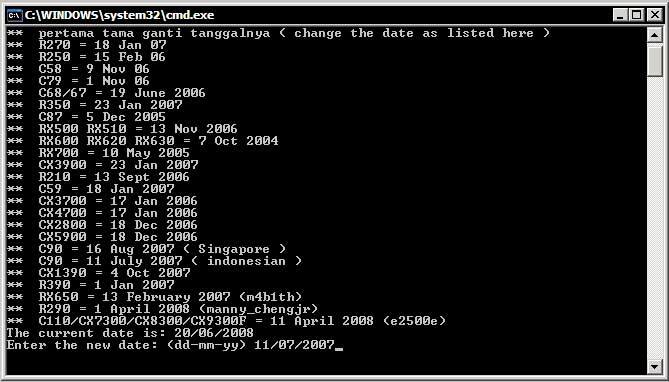
c. Masuk ke folder resetter_epson_c90. Jalankan reset.bat, rubah date menjadi 10/07/2007.

d. Minimize command prompt reset.bat tersebut.

e. Kemudian jalankan “AdjProg.exe”.

f. Klik “Accept”.

g. Klik “Particular adjustment mode”.

h. Lalu pilih Waste Ink pad Counter dan klik OK.

i. Klik tombol “Check”, tunggu sampai proses selesai.

j. Klik tombol “Initialization” kemudian klik “Finish”.

k. Matikan printer, lalu hidupkan kembali.

l. Setelah reset berhasil, kembali ke command prompt reset.bat. Kembalikan date seperti semula.

m. Untuk memastikan printer C90 sudah normal, lakukan test print.

Sangat mudah sekali. Tidak sampai 10 menit, printer saya normal kembali. Coba saja.....

Cara Pintar & Mudah Mengurangi Biaya Printer


Jika Anda sering mencetak dokumen dengan printer Anda, pasti Anda menyadari bahwa harga tinta dan kertas semakin mahal. Bahkan ada saatnya di mana total biaya mencetak Anda melebihi harga komputer Anda sendiri. Cara terbaik menghemat uang Anda adalah dengan tidak mencetak dokumen. Dengan kemajuan teknologi saat ini, keberadaan printer semakin tidak dibutuhkan, tetapi jika Anda memang harus mencetak suatu dokumen maka dibawah ini ada beberapa cara untuk menghemat dalam mencetak sekaligus membantu bumi kita menjadi lebih hijau.

Cetaklah Lebih Dari Satu Halaman di Selembar Kertas

Ini adalah cara paling sederhana untuk menghemat, terutama untuk presentasi PowerPoint, karena isi presentasinya biasanya masih mudah terbaca walaupun ukurannya diperkecil.

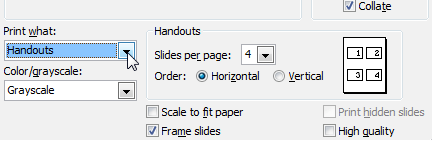
Pada kotak dialog print, pilih Handouts di “Print what” dan pilih jumlah banyaknya slide yang ingin dicetak di setiap lembar kertas. Anda juga bisa menghemat lebih banyak tinta jika mencetak dengan pilihan Grayscale.
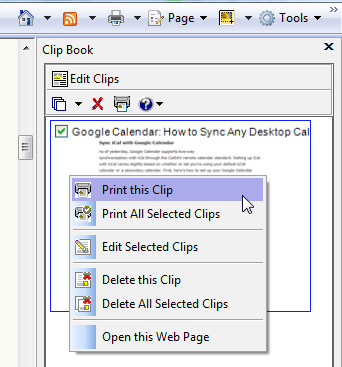
Pilih cetak slide

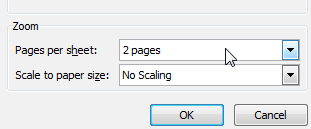
Anda juga akan menemukan pengaturan yang sama pada dialog print di Microsoft Word, di mana Anda bisa menentukan jumlah halaman di setiap lembar kertas. Mencetak 2 halaman pada selembar kertas masih cukup terbaca dengan baik.
Pilih 2 halaman saat mencetak dokumen Word

Banyak printer laser yang juga menyediakan pilihan duplex untuk mencetak pada kedua sisi kertas.

Gunakan Print Preview dan Shrink to Fit

Berapa kali Anda pernah salah mencetak suatu dokumen yang Anda kira cukup di selembar kertas tetapi ternyata tercetak pada dua lembar kertas? Jika Anda selalu mengklik tombol cetak tanpa melihat preview terlebih dahulu, maka Anda akan memboroskan banyak tinta dan kertas. Dengan menggunakan Print Preview maka Anda dapat menghindari kesalahan mencetak yang mungkin terjadi.

Firefox dan IE memiliki opsi yang disebut “Shrink to Fit” yang dapat mengecilkan konten sehingga menghemat kertas Anda, atau Anda bisa memilih tingkat perbesaran sesuka Anda untuk memuatnya ke selembar kertas saja.

Microsoft Word juga memiliki suatu opsi yang disebut “Shrink One Page” yang akan mencoba mengecilkan dokumen Anda sehingga cukup pada selembar kertas dengan mengecilkan font dan spasi dari teksnya.

Cetaklah Bagian yang Anda Butuhkan Saja

Daripada mencetak seluruh dokumen, hampir semua aplikasi memiliki sebuah fitur yang mungkin selama ini tidak Anda perhatikan yaitu fitur untuk mencetak hanya teks yang terblokir. Fitur ini sangat berguna jika Anda hanya ingin mencetak sebuah paragraf dari suatu website atau sebagian kecil teks dari suatu dokumen yang panjang, daripada Anda menghabiskan waktu dengan menghapus halaman-halaman yang tidak Anda butuhkan.

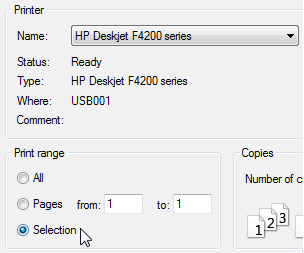
Cara ini dapat bekerja pada sebagian besar aplikasi seperti IE, Firefox, Microsoft Excel & Word. Cukup dengan memblokir bagian dokumen yang ingin Anda cetak dan pilih “Selection” di dialog print.
Pilih cetak selection

Cara ini sangat berguna jika Anda ingin mencetak dari suatu blog karena sangat sedikit blog yang tidak memasukkan bagian komentar dari tampilan cetak sehingga pada akhirnya Anda mencetak berlembar-lembar halaman yang isinya hanya komentar. Perlu Anda ketahui bahwa Anda juga bisa mencetak halaman-halaman tertentu saja, hal ini berguna jika Anda tidak bisa menyeleksi suatu dokumen tetapi mengetahui halaman yang ingin Anda cetak.

Anda juga bisa menggunakan Aardvark extension Firefox, untuk menyembunyikan elemen lain yang tidak ingin Anda cetak yang ada di halaman tersebut seperti iklan dan gambar lainnya.

Mencetak Banyak Seleksi Sekaligus Pada Selembar Kertas

Daripada mencetak sebuah seleksi secara satu persatu, Anda dapat menyeleksi berbagai bagian pada suatu halaman dan mencetaknya pada selembar kertas dengan HP Smart Web untuk IE dan Firefox 2.0. (Walaupun dibuat oleh HP, tetapi aplikasi ini dapat dipakai untuk semua printer). Aplikasi ini dapat menghemat banyak kertas jika Anda seringkali harus mencetak berbagai alamat atau kontak dari berbagai sumber sekaligus.
HP Smart WebSayangnya, add-on ini tidak bekerja di Firefox 3 bahkan setelah dicoba dengan Nightly Tester Tools. Semoga mereka akan segera memperbaharui produk ini, karena add-on ini sangat berguna untuk menghemat kertas.
Gunakan Mode Draft Sebagai Setting Default

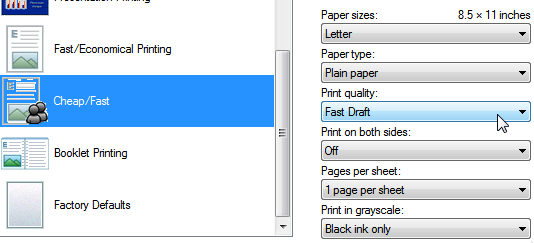
Jika Anda menggunakan sebuah printer inkjet maka Anda tidak perlu menggunakan kualitas tinggi atau menengah untuk mencetak hal-hal kecil seperti artikel atau apapun itu. Anda akan menghemat banyak tinta (dan waktu) dengan memasang Fast Draft sebagai default pada printer properties, sehingga tidak perlu setiap kali mengganti settingya.

Buka folder Printers, klik kanan printer Anda dan pilih “Printing Preferences”. Walaupun setiap jenis printer berbeda, tetapi hampir semuanya memiliki pilihan “Fast Draft” pada bagian kualitas cetakan. Anda juga dapat menghemat tinta warna dengan memilih grayscale sebagai default.
Pilih draft sebagai pengaturan default

Banyak printer yang dapat menyimpan pengaturan Anda sebagai default sehingga Anda dapat dengan cepat memilih pengaturan yang Anda inginkan ketika mencetak dan menghemat banyak waktu.
Cetak ke PDF dan Bukan ke Kertas
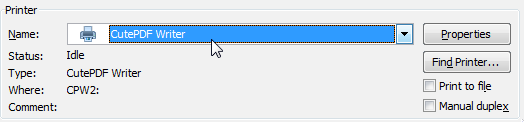
Daripada mencetak dokumen pada kertas, Anda dapat “mencetaknya” menjadi file PDF yang lebih mudah diemail dan ramah lingkungan. Ada banyak pilihan untuk mencetak ke PDF termasuk: doPDF, PDFCreator atau CutePDF untuk pengguna Windows, CUPS-PDF untuk Linux dan pengguna Mac OS X telah memiliki fitur “Save as PDF”, mereka juga bisa memasang CUPS-PDF sebagai “printer” yang sekaligus menjadi PDF converter.
Mencetak ke PDF dengan CutePDF

Isi Ulang Sendiri Cartridge Printer Anda Kecuali Anda mencetak foto atau sesuatu yang membutuhkan kualitas tinggi (seperti CV misalnya), Anda dapat mengisi ulang cartridge printer Anda yang tentu saja lebih murah daripada membeli cartridge baru. Perlu diingat bahwa cartridge printer tidak dapat selamanya diisi ulang dan kemungkinan gagal cetak akan lebih besar daripada menggunakan cartridge baru, tetapi tentu saja yang menjadi pertimbangan adalah perbedaan harga yang cukup jauh. Jika Anda mau sedikit lebih susah, maka Anda bahkan bisa mengisi ulang sendiri cartridge Anda dan lebih menghemat lagi biaya yang harus dikeluarkan.

Gunakan GreenPrint untuk Menghitung Penghematan Anda

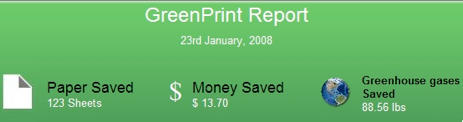
GreenPrint adalah sebuah aplikasi gratis yang bekerja sebagai virtual printer dan melihat dokumen Anda sebelum dikirim ke printer, sehingga Anda bisa membuang apa saja yang tidak ingin Anda cetak sekaligus memberikan pilihan untuk “mencetak” ke PDF atau kertas. Sebagai bonusnya Anda akan melihat sebuah laporan yang isinya berapa banyak kertas dan biaya yang telah Anda hemat. ( LifeHacker)

Sumber : Udara Maya

Perawatan Printer dengan Benar

Printer merupakan peripheral PC yang penting. Kebanyakan printer PC memakai interface pararel atau centronics. Pada PC, interface tersebut berupa konektor betina jenis D 25 pin, interface pararel tersebut mengirim kedelapan bit data secara serempak, dimana saluran strobe memberitahukan printer bilamana terdapat karakter untuk dibaca. Untuk pembacaan interface pararel menurun, maka printer membaca byte data, kemudian sinyal acknowledge dipakai untuk memberitahukan komputer bahwa interface siap untuk bertaambah lagi. Sinyal lain digunakan untuk memberitahukan PC bila interface sedang aktif atau sibuk, kesalahan telah terjadi atau kertas habis dan lainlain.

DOWNLOAD ARTIKEL LENGKAP (PDF):
  1. safii-printer.zip
DOWNLOAD SOFTWARE PENDUKUNG:
  1. Acrobat PDF Reader
ARTIKEL YANG BERHUBUNGAN:
  1. Langkah Awal Mengatasi Masalah Printer
  2. Bekerja dengan Printer di SUSE
  3. Mereset Printer Yang Mogok
  4. Bekerja dengan Printer di JDS
  5. Berbagi Printer di Linux dengan Samba
  6. Tutorial Samba
  7. Local Printer pada Diskless System
  8. Teknologi Jaringan Komputer
  9. Hit Counter Sederhana dengan PHP
  10. Tutorial Komputer dan Jaringan

Langkah Awal Mengatasi Masalah Printer

Selama menggunakan printer, pernahkah anda menemui masalah berikut ?
- Printer tidak dapat mencetak
- Printer kelihatan mencetak, namun tidak ada sesuatu yang tertulis diatas kertas
- Halaman cetakan tidak lengkap atau karakter yang dicetak aneh
- Lampu indikator hanya berkedip-kedip terus saat diberikan perintah mencetak
- Kertas tidak dapat masuk ke printer sebagaimana mestinya
- Kertas tidak dapat keluar dari printer
- Hasil cetakan bergaris -garis
- Beberapa fitur yang dijanjikan oleh produsen printer tidak dapat bekerja
- Printer menjadi lambat dalam mencetak
- Font yang tercetak tidak sama dengan yang tampil di layar monitor

DOWNLOAD ARTIKEL LENGKAP (PDF):
  1. paskalis-troubleshoot_printer.zip
DOWNLOAD SOFTWARE PENDUKUNG:
  1. Acrobat PDF Reader
ARTIKEL YANG BERHUBUNGAN:
  1. Teknik dan Logika Pemrograman
  2. Mereset Printer Yang Mogok
  3. Local Printer pada Diskless System
  4. Bekerja dengan Printer di JDS
  5. Menambah Koleksi Pilihan Font dalam OpenOffice
  6. Perawatan Printer dengan Benar
  7. Bekerja dengan Printer di SUSE
  8. Instalasi CentOS 5 dari DVD
  9. Cetak Data Report Landscape Pada VB 6.0
  10. Langkah-langkah Mensetup WAMP (Windows, Apache, Mysql dan PHP)

Mereset Printer yang Mogok

Author: wagung | Published: 19th July 2007

Pada Printer Canon , Epson , Hp Inkjet semua type, jumlah pencetakannya akan selalu diakumulasikan hingga batas tertentu. Dan bila sudah mencapai batas yang ditetapkan, maka akan Overload dengan ditandai lampu LED menyala secara bergantian atau disebut dengan BLINKING. Jika hal ini terjadi, maka Mau tidak mau printer harus dI service. Hal ini tidak masalah jika rumah kita dekat Lalu bagaimana jika Rumah Kita Di Luar Kota atau bahkan di Luar Pulau. Solusinya kita harus menservice sendiri printer kita, syaratnya harus punya software RESETTER dan trik bagaimana meresetnya.

DOWNLOAD ARTIKEL LENGKAP (PDF):
  1. Mereset printer Blingking
Sumber: www.ilmukomputer.com

MODERN PRINT TECHNOLOGY

From Wikipedia

The following printing technologies are routinely found in modern printers, as of April 2006:

Toner-based printers

Toner-based printers work using the Xerographic principle that is at work in most photocopiers: by adhering toner to a light-sensitive print drum, then using static electricity to transfer the toner to the printing medium to which it is fused with heat and pressure.
The most common type of toner-based printer is the laser printer, which uses precision lasers to cause adherence. Laser printers are known for high quality prints, good print speed, and a low (Black and White) cost-per-copy; they are the most common printer for many general-purpose office applications. They are far less commonly used as consumer printers due to a high initial cost, although this cost is dropping.
Laser printers are available in both color and monochrome varieties.
Another toner based printer is the LED printer which uses an array of LEDs instead of a laser to cause toner adhesion to the print drum.
Recent research has also indicated that Laser printers emit potentially dangerous ultrafine particles, possibly causing health problems associated with respiration and cause pollution equivalent to cigarettes. The degree of particle emissions varies with age, model and design of each printer but is generally proportional to the amount of toner required. Furthermore, a well ventilated workspace would allow such ultrafine particles to disperse thus reducing the health side effects.

Liquid inkjet printers

Solid ink printers

Solid Ink printers, also known as phase-change printers, are a type of thermal transfer printer. They use solid sticks of CMYK colored ink (similar in consistency to candle wax), which are melted and fed into a piezo crystal operated print-head. The printhead sprays the ink on a rotating, oil coated drum. The paper then passes over the print drum, at which time the image is transferred, or transfixed, to the page.
Solid ink printers are most commonly used as color office printers, and are excellent at printing on transparencies and other non-porous media. Solid ink printers can produce excellent results. Acquisition and operating costs are similar to laser printers. Drawbacks of the technology include high power consumption and long warm-up times from a cold state.
Also, some users complain that the resulting prints are difficult to write on (the wax tends to repel inks from pens), and are difficult to feed through Automatic Document Feeders, but these traits have been significantly reduced in later models. In addition, this type of printer is only available from one manufacturer, Xerox, manufactured as part of their Xerox Phaser office printer line. Previously, solid ink printers were manufactured by Tektronix, but Tek sold the printing business to Xerox in 2001

Dye-sublimation printers

A dye-sublimation printer (or dye-sub printer) is a printer which employs a printing process that uses heat to transfer dye to a medium such as a plastic card, paper or canvas. The process is usually to lay one color at a time using a ribbon that has color panels. Dye-sub printers are intended primarily for high-quality color applications, including color photography; and are less well-suited for text. While once the province of high-end print shops, dye-sublimation printers are now increasingly used as dedicated consumer photo printers.

Inkless printers

Inkless printers use paper with colorless dye crystals embedded between the two outer layers of the paper. When the printer is turned on, heat from the drum causes the crystals to colorize at different rates and become visible. One inkless printing technology, Zink, originally developed at Polaroid, became available in 2007. Because of the way it prints, the printer can be as small as a business card, the images are waterproof, and in fact, one product slated for release by Zink Imaging is a digital camera with a printer built into it.
Xerox is also working on an inkless printer which will use a special reusable paper coated with a few micrometres of UV light sensitive chemicals. The printer will use a special UV light bar which will be able to write and erase the paper. As of early 2007 this technology is still in development and the text on the printed pages can only last between 16-24 hours before fading.

Obsolete and special-purpose printing technologies

The following technologies are either obsolete, or limited to special applications though most were, at one time, in widespread use.
Thermal printers work by selectively heating regions of special heat-sensitive paper. These printers are limited to special-purpose applications such as cash registers and the printers in ATMs and gasoline dispensers. They are also used in some older inexpensive fax machines.
Impact printers rely on a forcible impact to transfer ink to the media, similar to the action of a typewriter. All but the dot matrix printer rely on the use of formed characters, letterforms that represent each of the characters that the printer was capable of printing. In addition, most of these printers were limited to monochrome printing in a single typeface at one time, although bolding and underlining of text could be done by overstriking, that is, printing two or more impressions in the same character position. Impact printers varieties include, Typewriter-derived printers, Teletypewriter-derived printers, Daisy wheel printers, Dot matrix printers and Line printers. Dot matrix printers remain in common use in businesses where multi-part forms are printed, such as car rental service counters.
Pen-based plotters were an alternate printing technology once common in engineering and architectural firms. Pen-based plotters rely on contact with the paper (but not impact, per se), and special purpose pens that are mechanically run over the paper to create text and images.

Typewriter-derived printers

Several different computer printers were simply computer-controllable versions of existing electric typewriters. The Friden Flexowriter and IBM Selectric typewriter were the most-common examples. The Flexowriter printed with a conventional typebar mechanism while the Selectric used IBM's well-known "golf ball" printing mechanism. In either case, the letter form then struck a ribbon which was pressed against the paper, printing one character at a time. The maximum speed of the Selectric printer (the faster of the two) was 15.5 characters per second.

Teletypewriter-derived printers

The common teleprinter could easily be interfaced to the computer and became very popular except for those computers manufactured by IBM. Some models used a "typebox" that was positioned (in the X- and Y-axes) by a mechanism and the selected letter from was struck by a hammer. Others used a type cylinder in a similar way as the Selectric typewriters used their type ball. In either case, the letter form then struck a ribbon to print the letterform. Most teleprinters operated at ten characters per second although a few achieved 15 CPS.

Daisy wheel printers

Daisy-wheel printers operate in much the same fashion as a typewriter. A hammer strikes a wheel with petals (the daisy wheel), each petal containing a letter form at its tip. The letter form strikes a ribbon of ink, depositing the ink on the page and thus printing a character. By rotating the daisy wheel, different characters are selected for printing.
These printers were also referred to as letter-quality printers because, during their heyday, they could produce text which was as clear and crisp as a typewriter (though they were nowhere near the quality of printing presses). The fastest letter-quality printers printed at 30 characters per second.

Dot-matrix printers

In the general sense many printers rely on a matrix of pixels, or dots, that together form the larger image. However, the term dot matrix printer is specifically used for impact printers that use a matrix of small pins to create precise dots. The advantage of dot-matrix over other impact printers is that they can produce graphical images in addition to text; however the text is generally of poorer quality than impact printers that use letterforms (type).

A Tandy 1000 HX with a Tandy DMP-133 dot-matrix printer.
Dot-matrix printers can be broadly divided into two major classes:
Ballistic wire printers (discussed in the dot matrix printers article)
Stored energy printers
Dot matrix printers can either be character-based or line-based (that is, a single horizontal series of pixels across the page), referring to the configuration of the print head.
At one time, dot matrix printers were one of the more common types of printers used for general use - such as for home and small office use. Such printers would have either 9 or 24 pins on the print head. 24-pin print heads were able to print at a higher quality. Once the price of inkjet printers dropped to the point where they were competitive with dot matrix printers, dot matrix printers began to fall out of favor for general use.
Some dot matrix printers, such as the NEC P6300, can be upgraded to print in color. This is achieved through the use of a four-color ribbon mounted on a mechanism (provided in an upgrade kit that replaces the standard black ribbon mechanism after installation) that raises and lowers the ribbons as needed. Color graphics are generally printed in four passes at standard resolution, thus slowing down printing considerably. As a result, color graphics can take up to four times longer to print than standard monochrome graphics, or up to 8-16 times as long at high resolution mode.
Dot matrix printers are still commonly used in low-cost, low-quality applications like cash registers, or in demanding, very high volume applications like invoice printing. The fact that they use an impact printing method allows them to be used to print multi-part documents using carbonless copy paper (like sales invoices and credit card receipts), whereas other printing methods are unusable with paper of this type. Dot-matrix printers are now (as of 2005) rapidly being superseded even as receipt printers.

Line printers

Line printers, as the name implies, print an entire line of text at a time. Three principal designs existed. In drum printers, a drum carries the entire character set of the printer repeated in each column that is to be printed. In chain printers (also known as train printers), the character set is arranged multiple times around a chain that travels horizontally past the print line. In either case, to print a line, precisely timed hammers strike against the back of the paper at the exact moment that the correct character to be printed is passing in front of the paper. The paper presses forward against a ribbon which then presses against the character form and the impression of the character form is printed onto the paper.
Comb printers represent the third major design. These printers were a hybrid of dot matrix printing and line printing. In these printers, a comb of hammers printed a portion of a row of pixels at one time (for example, every eighth pixel). By shifting the comb back and forth slightly, the entire pixel row could be printed (continuing the example, in just eight cycles). The paper then advanced and the next pixel row was printed. Because far less motion was involved than in a conventional dot matrix printer, these printers were very fast compared to dot matrix printers and were competitive in speed with formed-character line printers while also being able to print dot-matrix graphics.
Line printers were the fastest of all impact printers and were used for bulk printing in large computer centres. They were virtually never used with personal computers and have now been replaced by high-speed laser printers.
The legacy of line printers lives on in many computer operating systems, which use the abbreviations "lp", "lpr", or "LPT" to refer to printers.

Pen-based plotters

A plotter is a vector graphics printing device which operates by moving a pen over the surface of paper. Plotters have been (and still are) used in applications such as computer-aided design, though they are being replaced with wide-format conventional printers (which nowadays have sufficient resolution to render high-quality vector graphics using a rasterized print engine). It is commonplace to refer to such wide-format printers as "plotters", even though such usage is technically incorrect.

Kategori

055CXPRO3 100Hz 1024x768 1080ip 1080p 10MP 10xOptical 121MP 121Megapixels 121megapixel 12Channel 12Ounce 141MP 165LBS 18Volt 19YearOlds 23Inch 240ml 25quot 2746 27Inch 2Pack 30Inch 3255 3265 3265Inch 32Inch 37Inch 37LV3500 3Inch 412Inch 46G310U 46Inch 46Inches 46LA45RQ 46PFL5706F7 46SL412U 46SL417U 46quot 47Inch 5460Inch 55Inch 58Inch 5Piece 60Watt 6by9Inch 732YB482K 800x600 812Inch 998864 ALAMPLB APTMM2B ATHM50 Accessory Add-ons Mozilla Adsense Advertising Advice Affect Affordable Alexa American Amplifier Android Annies Antenna Anti Virus Antivirus Antivirus Update Aperture Appetite Aquapac Articulating Attic AudioTechnica Automatic Available BC12062 BDPS570 BRAVIA BRPK3AN Backlink Backpack Backrest Bamboo Basics Bathroom Batteries Battery Battle Bedding Bedroom Bedrooms Beechwood Before Beginners Benefits Berita Berita Terbaru Better Between Bicycle Binoculars Birthday Bisnis Internet Black Blackberry Blanket Blog Blossom BluRay Blue BlueSilver BoltOn Bose Boyfriend Bracket Brackets Brand Breakfast Brightess Bringing Brother Bubble Building Bundle Burning Butter Buyers Buying CINNAMON CX3800 CX3810 CX4200 CX4300 CX4600 CX4800 CX5000C CX7400 CX7800 Cabinet Cabinets Camcorders Camera Cameras Capacity Cara Bisnis Online Cara Recovery Data Cara Self Test Printer Cara Service Elektronik Cara Service Harddisk Cara Service Jaringan Cara Service Komputer Cara Service Laptop Cara Service Monitor Cara Service Ponsel Cara Service Printer Cara Service TV Cara Service UPS Carbide Carbon Carved Castings Castle Ceiling Celebrate Celtic Chairs Changeable Changing Charger Charlie Chatbox Cheapest Cheetah Cherry Chocolate Choose Choosing Chopsticks Christmas Cinderblock Cleaning Closer Coaxial Coffee Collapsible Collection College Color Column Combination Comforter Compact Companies Company Compare Compared Comparing Compatible Computer Concept Concrete Consider Consumer Contemporary Control Convertible Cooker Cooler Coolpix Cordless Corner Cotton Crafting Creating Creative Crochet Crocheter Css Cubbies Cutting Cybershot DC91802 DEWALT DMCLX5 DMCS1 DMCS3 DMCTS2 DMCTS3 DMCZS5 DMCZS9 DSCH70 DSCT10 DSCT90 DSCW310BLDB Danica Dawson Decorate Decorating Definition Delight Deluxe Design Designer Development Device Dietary Difference Different Digital Digital Camera Canon Digital Camera Canon Powershot Digital Camera Fujifilm Digital Camera Lens Digital Camera Nikon Digital Camera Panasonic Digital SLR Camera Discover Display Displays Distressed Distribution Dofollow Dollars Domain Dreams Drilling Drills Driver Drivers Drives Dumbbell Dymatize E-book Gratis E370VA E470VLE EA8080 ECES80 ECST65 ELPLP49 EXFH20 EXZ75 Earthquake EasyShare Ebook Edition Effective Egyptian Emoticons Entertainment Ericsson Espresseria Espresso Essentials Ethernet Everyone Everything Excellent Exchange Exilim Experience Explained Extended Extremely Facebook Family Fantastic Fashionable Fashions Faucet Features Fermented Fibromyalgia Finding FinePix Finish Firmness Follow Format Formula Foundation Freaks Free Software Freeware Fujifilm Function Furniture Future Game Gratis Keren Gaming Generation Getting Girlfriend Glasses GoPro Camera Goggles Google Adsense Google Friend Connect Google Translate Google+ Grey Grinder HTML Hacking Halloween Handheld Handlebar Handset Headboard Headphones Headset HighPerformance Hitachi Hollywood Homemade Homework Housing Husks Ilmu Komputer Images Imageshack Importance Important Includes Infant Info Aksessoris Komputer Info Software Information Integrated Intelligent Interface Interlock International Internet Networking Internet Business Istilah-Istilah Komputer - TI Jacquard KDL46BX420 KDL46EX403U KDL46EX500 KDL46NX810 KDL46S5100 Kegerator Kidkraft Kikkerland Kitchen LBOAS LC46D78UN LC46LE830U LCDDLP LCDDVD LCDNotebook LEDLCD LHB976 LN32B360 LN32D450 LN46A650 LN46B550 LN46B650 LN46B650T LN46C530 LN46C630 LN46C750 LN46D503 LN46D550 LN46D630 LNS4695D Ladies Lain-lain Laptops Leather Lenovo Lensbaby Lenses Lightning Lights Limited Linux Lipper Literature Lithium LithiumIon Little Lumens M1924A MF607B MFC8670 MP248B MPEG124 MX1260 Magnesium Magnetic Maintenance Management Manfrotto Mansion Marketplace Matte Mattress Measurements MegaPixel Megapixels Menu Horizontal Menu Vertical Microwave MinoHD Minolta Mobile Model Models Modern Modulator Module Monitor Monitors Motion Mountable Mounting Mounts Movies Moving MultiPurpose MultiSpeaker Multiroom Muscle Muscles MustHave NSX46GT1 Natural Nautical Newborn Nintendo Nobodys NonFerrous Notebook Novice Nursery Nutrition Nutritional Olympus Opened Optical Optimum Optimus Options Optoma Organic Original Ottoman Ottomans Outing Outstanding Overhead Pagerank Painting Pair Panasonic Panduan Service Monitor I Panduan Service Monitor II Pastures Personally Philips Phones Photographers Photographs Photography Picking Pictures Pieces Pillows Pink Pinpoint Pixels Plasma Plastic Platinum PlaySport PlayStation Player Pleasure Pocket Polaroid Popular Possible Posters Pounds Powder PowerShot Powered Powerful PreCharged Preparations Presentations Pressure Preview Princess Principle Printer Printers Prints Processor Product Product Review Products Professional Profile Projector Projectors Protector Protein Psyllium Public Pumpkin Purchase Purple Quality Quattron Quickly Quilted RSS FEED RTB1100 Rayovac Reader Really Reasons Rectangle RedCyan Reduction Reference Refresh Release Remote Replace Replacement Reports Research Resetter Canon Resetter Epson Resetter HP Resolution Results Reticle Review Reviews Riding Riflescope Rimfire RoomWithAView RoundAndRound RuggedWaterproof SD780IS SDSDHCMMC SEO SPDIF SS1000 SSeries SX10IS SX130IS SX20IS SX210IS SX230HS Safety Sakura Samsung Satisfactory Screen Screens Scrutiny Seating Seatpost Secrets Section Seniors Sensational Sensor Series Serious Service Elektronik Service Komputer Laptop Service Printer Canon Service Printer Epson Service Printer HP Service Printer Laser Jet Sharpener Sheets Shelved Shelves Shelving Should Silicone Silver Sitemap Slender Software Gratis Pilihan Soldering Solutions Sooner Sourcing Spacesaver Speakers Speaking Sports Squeeze Stabilized Standard Standing Stands Staying Steady Stools Storage Streaming Strict Stripe Stripes Students Studio Stylish Subwoofer Suggestions Summer Suncast Supplements Suppress Surround Susan Swivel Swiveling System T90dvfdblack TBS421601 TCP46S30 TS8GSDHC6E TVProtectorTM Tables Tablet TechFuel Technology Teens Television Televisions Templates Terminology Theater Themed Therapy Think Thinkpad Timelines Tip Trik Internet Tip Trik Windows Tipped Tips Blogger-Blogspot Tips Blogging Tips Blogspot Tips HTML dan JavaScript Tips Keamanan Komputer Tips PHP Tips Visual Basic Tips Windows Vista Tips Windows XP Tips and Tricks Tips dan Trik Tips-Tutorial Photoshop Toddler Toilet TopSelling Toppers Torpedo Toshiba Touchscreen Transcend Transmitter Travel TraysTables Treatment Tripod Turtle Tutorial Blogspot Tutorial Wordpress TwinFull Twitter Twitter Stuff UM720S UN46B6000 UN46D6000 UN46D6400 UN55B8000 Ukur Komponen Elektronika UltraHD Understanding Underwater Universal V13H010L49 VariAngle Vaulted Vibration Video VideoSecu Viewing Vision Vitamin WAH1111BA0850 WPS18MP Wallet Walls Warta Terkini Waterproof Wave Website Weight WellOrganized Weller Western Whats White Wholesale WideAngle Widgets Windows Windows Tips Winsome Wireless Within Without Wooden Working X500BK ZoomNikkor accept awning cpu foursquare heello iPhone latex mattresses memory pc troubleshouting tx1000